| Creating multiple texture map templates | |
|
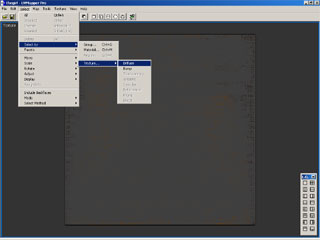
The purpose of this tutorial is to demonstrate how to easily create texture templates from models with multiple texture maps using UVMapper Professional. I'll be using the Girl mesh available from DAZ3D, but the procedure shown here should work fine with any model you choose. Start by loading the model into UVMapper Professional. Because we're working strictly with texture templates in this tutorial, I've selected the full screen 2D view-port by clicking twice on the top left button of the layout dialog box. Choose Select | Select by | Texture | Diffuse from the main menu. |
|
|
|
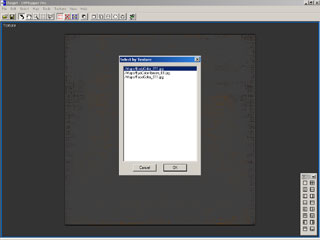
If the Diffuse menu item is grayed out, it's because the model you're using does not have any diffuse texture maps assigned the the materials. If any of the other texture types are available, you can try using one of them. Other options include Bump, Transparency, Ambient, Specular, Reflectance, Phong and Decal . Selecting Diffuse will bring up the Select by Texture dialog box. Select the first choice and click OK . |
|
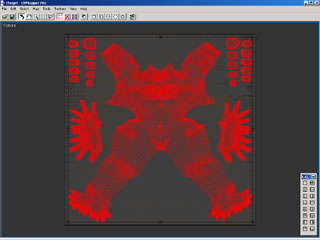
You have now selected every facet that uses the first diffuse texture map. Next hide all of the unselected facets by choosing Select | Display | Hide Unselected from the main menu (or the corresponding hot-key.) Now press Enter to save your selection. |
|
|
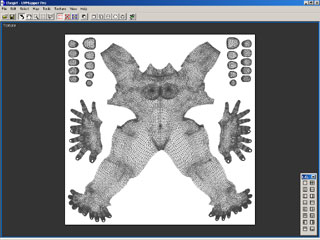
Your display should now look like this. Every facet that uses the first diffuse texture map is now being displayed. To save your template, choose File | Save Template... from the main menu (or use the hotkey Ctrl+T .) You can use the default settings to save out your first texture template. It's usually good practice to use the same name for the template as the texture map adjusting it slightly, for example adding a 'T' to the end. |
|
|
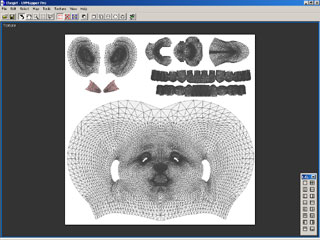
After repeating the process two more times, your screen should look like this. You can also use this feature to be sure that all of your materials have been assigned to a texture map. When choosing a texture map from the Select by Texture dialog box, click on the first item in the list, hold down the shift key, click on the last item and press OK. This will select every texture map listed. Any materials that are not selected haven't yet been assigned a texture map. That's all there is to it. If you have any questions or comments, please feel free to contact me. |